

Borrower Forms
Last updated December 1, 2025
Overview
Borrower Forms allows teams to collect borrower and investor data efficiently and track progress throughout the loan process.
Common use cases:
- Creating Borrower Forms from the Workflow Page
- Creating a Borrower form directly from the Borrower Form page
Use case 1: Create From Workflow Deal Card
- Link a borrower form directly to a deal on the Workflow page

- Select a form template you'd like to assign to this deal card
- Optional: If a broker is attached to this deal, click 'send via broker' and assign the form to a configured broker.
- Click on 'Email Options' before clicking 'Save' if you'd like to send an email to the borrower with a specific subject and email message

- Once selecting 'save' the link will be shared to the client and to your clipboard. Your borrower can begin filling out your configured form

- Review borrower responses once submitted:
- View all borrower entered data
- Edit fields directly in HC
- Verify each section using the section verification button

Last Activity Tab
Provides a complete audit trail of actions taken on the form.

Settings Tab
Configure the email message associated with this borrower form.

Actions Menu (Top-Right)
Use the Actions button in the top-right of the form for quick actions such as:
- Copy link - copy the form’s public link
- Archive
- Delete
- Mark Reviewed
- Download CSV - export all form data as a CSV file

Overview Panel (Right Sidebar)
Displays form metadata, borrower details, and submission status.

Use case 2: Create a Borrower Form directly from the Borrower Form page
Accessing Borrower Forms
From the Hypercore dashboard, open the left sidebar and click Borrower Forms.

Create from Borrower Forms List Page
- Click on New Borrower Form

- In the right panel, choose a template from the preconfigured options
- Select Client Access type:
- General link forms - Reusable templates that can be shared broadly via one link.
- Assigned forms- Send to a specific borrower via a unique link. Responses are tied to that borrower.

Creating General Borrower Forms
- Select General link under client access
- If you want the form to automatically create a deal in Workflow, select: 'Auto Create Deals'. Then Select:
- Which workflow to assign the deal to
- Which stage of the workflow to assign the deal to
- Choose which email options you'd like to configure the form with by clicking on 'Email Options'

- Click Generate link. The link is copied to your clipboard and the template appears under General Borrower Forms.

- Borrowers who access the link will fill out their information.
- If the email matches an existing client, Hypercore will auto-assign the submission to that client.

Managing General Form Templates
- Open any template to view all related submissions
- Available actions include Delete, Archive, and Copy link

General Form Overview
Here you can update initial settings. Hypercore also supports creating forms via email:
- Copy the email listed under 'Create Forms via Email'.
- Forward email to this email address
- Add AI instructions if relevant e.g treat all values as USD
Hypercore will automatically pre-fill the form using AI.
AI is not always fully accurate; please review results before approving.

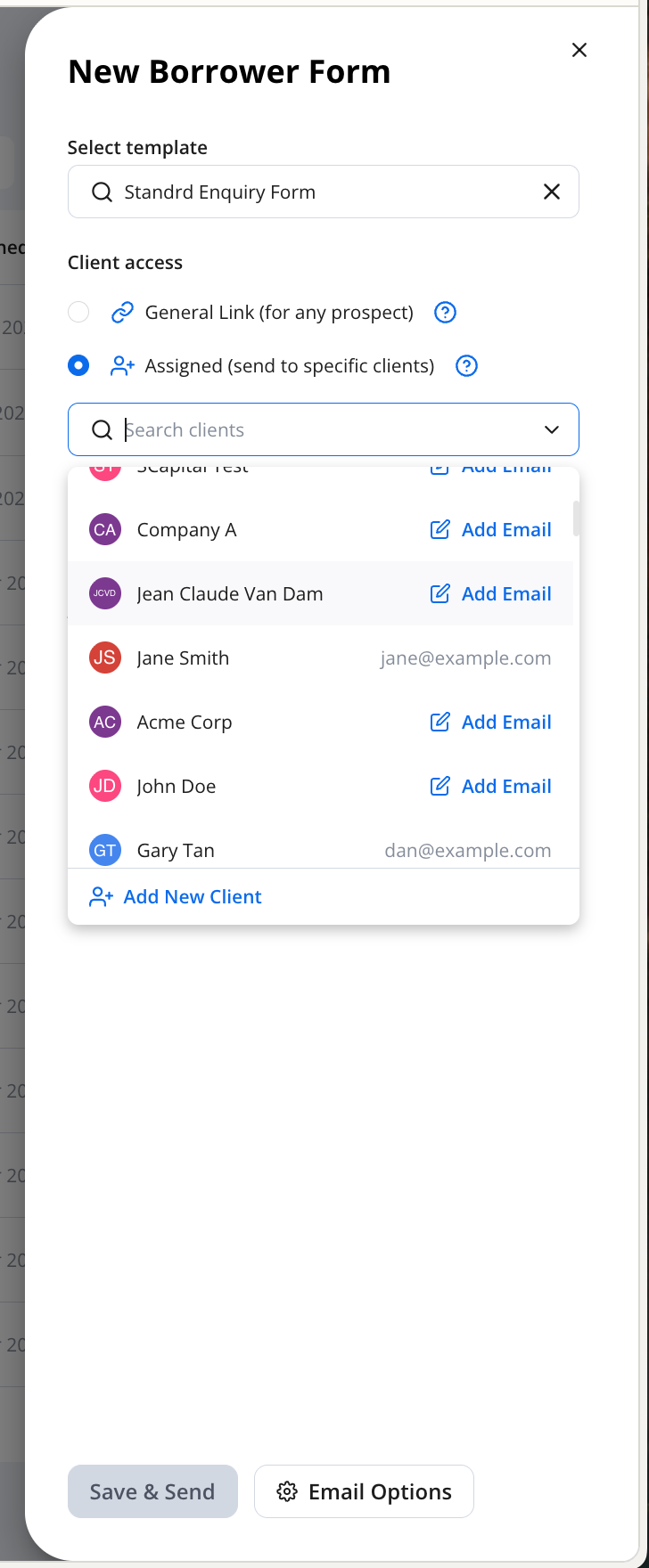
Create Assigned Borrower Forms Form
- Under Client access, choose Assigned form
- Search for relevant client and confirm their email is on the client record.
- The remaining steps are similar to creating a General Form.
- Submitted Assigned forms appear under Assigned Forms.
- Select any submission to open the Borrower’s form.

You can filter both Assigned and General forms using the built-in filter tools.

Requesting a New Borrower Form Template?
Custom Borrower Form templates are configured by the Hypercore support team.
How to request a new form
- Fill out a template request form with your requirements.
- Share the completed template with Hypercore Support at support@hypercore.ai
- The support team will respond within 1–3 business days with scope and timeline.